Blog / How-To Guides
How to Create a Wedding RSVP Google Form
Context
Learn how to build a wedding RSVP in Google Forms, share one link with guests, and close replies after your date.
On this page
A wedding RSVP Google Form is a short questionnaire that asks who is coming, what they will eat, and anything else you need for seating and catering. You build it once, send one link, and read the answers in the Responses tab or a linked spreadsheet.
This walkthrough stays in Google Forms. You will start from a blank form or the RSVP template, write a title guests recognize, add the questions a couple actually uses, apply a theme, check Settings, preview, Publish, and share a responder link.
Start from a blank form or the RSVP template
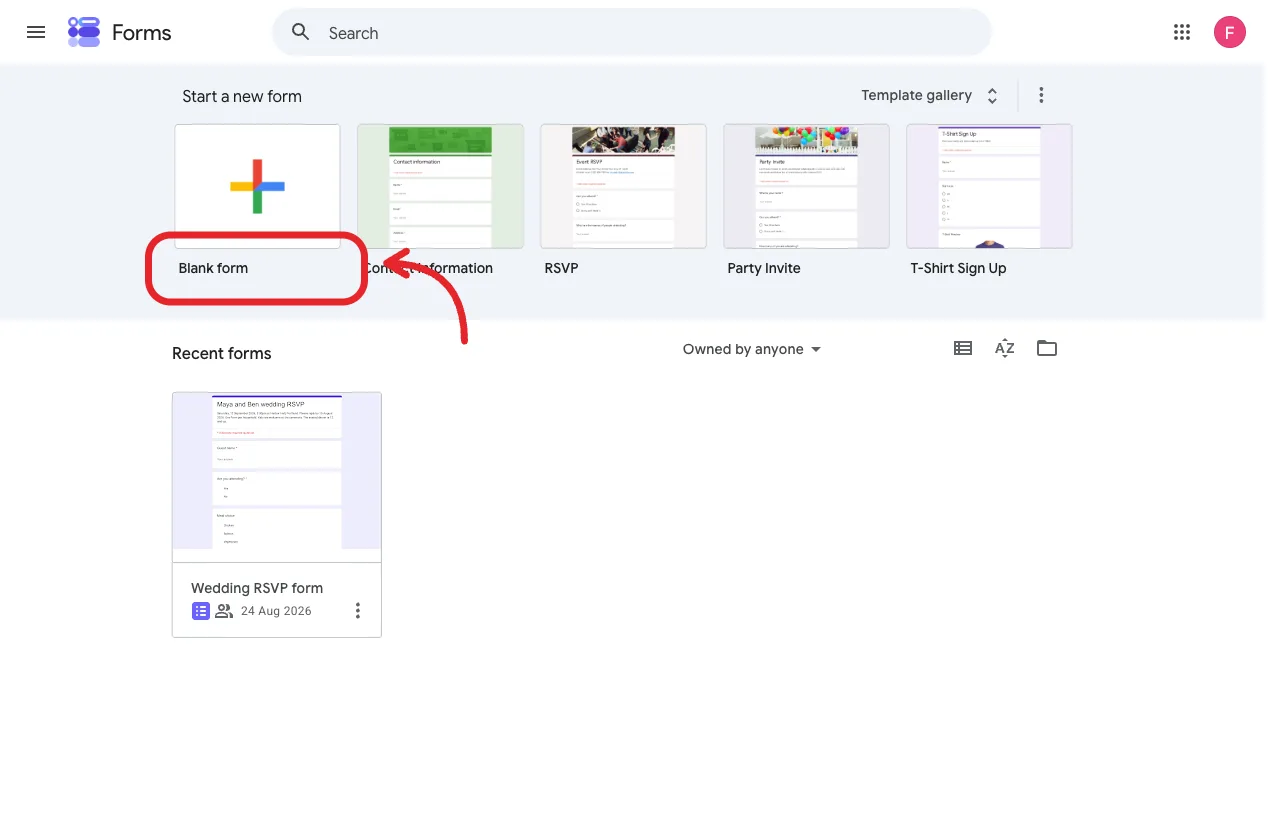
Blank form on the left. Template gallery and RSVP sit on the same row.
Sign in at forms.google.com. Google’s own starter guide says to click Blank form, then name the untitled form. That path is still the cleanest way to control every question and the theme from the first click. See Create your first form in Google Forms.
If you want a head start, open Template gallery on the same home screen. Many personal Google accounts still list an RSVP template under Personal. Some galleries label it Event RSVP. Click it and Google copies a new form into your Drive. You are editing your copy, not the shared original.
If RSVP is not there, you are not missing a hidden menu. Start from Blank form and add the questions below. You will end up with the same kind of RSVP either way.
Eligible Workspace or Google AI plans can also use Help me create a form with Gemini. Google’s example prompt is an RSVP for a neighborhood potluck. A wedding prompt works the same way: names, date, venue, meal choices, and plus-one rules. It is desktop-only, rolls out in stages, and needs a plan that includes Gemini, so skip it if you do not see it. Google documents the feature in Docs Editors Help under Help me create a form.
Tip: If two people are building the form, add the second person as an editor later. Do not share editor access with guests.
Write a title guests will recognize
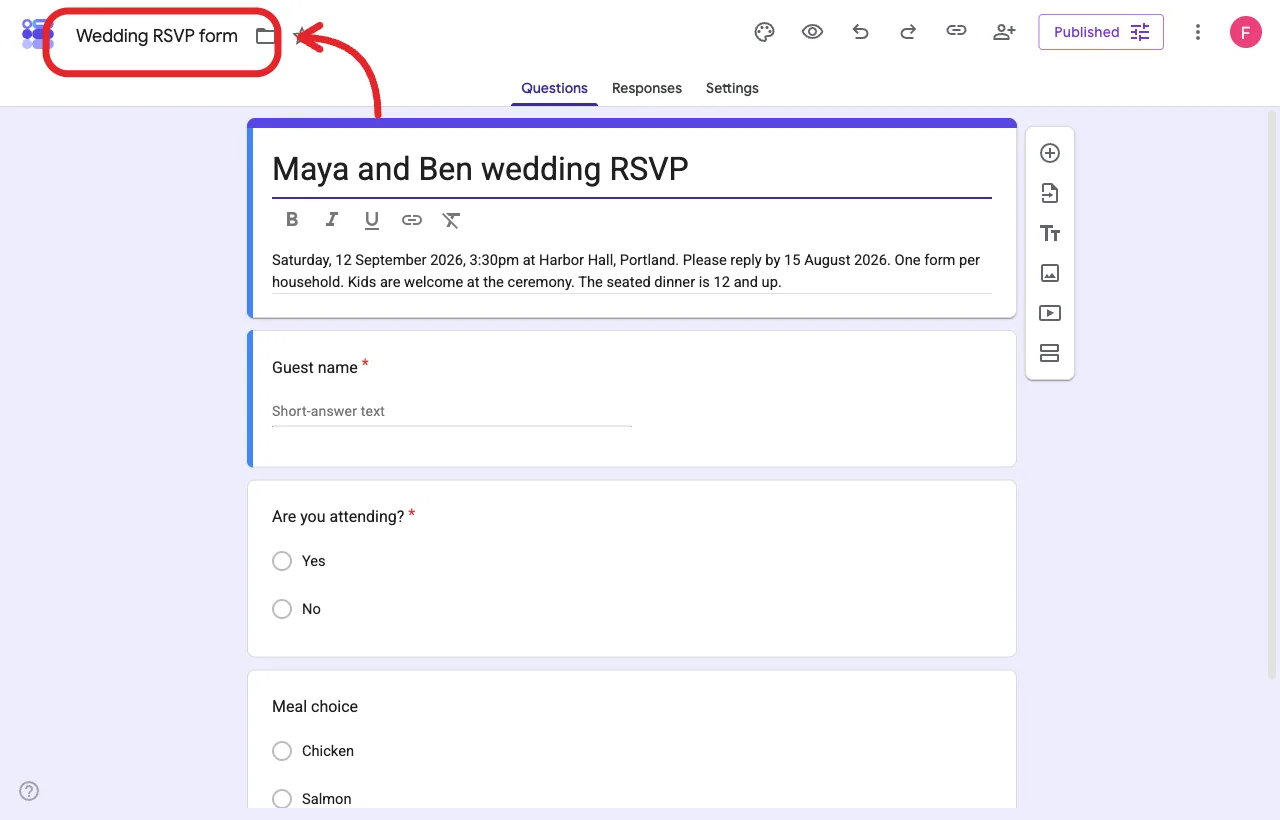
Top left is the Drive file name. Set it to Wedding RSVP form.
Click the Drive name in the top left. Google defaults that to Untitled form. Change it to Wedding RSVP form so the tab and your Drive list match the project. Then click the title on the form itself. Replace Untitled form with something a guest can match to the paper invite.
Good titles:
- Maya and Ben wedding RSVP
- Harbor Hall wedding RSVP, 12 September 2026
- Chen / Alvarez wedding reply
Weak titles:
- RSVP
- Event form
- Please fill this out
Guests get the link from email, a wedding website, or a text. The tab title and the first line of the form should name the couple.
Use the description box under the title for facts people should not have to hunt for:
- Full names of the couple
- Ceremony date and time, plus the city
- Venue name
- The date you need replies by
- A short note on kids, dress, or a welcome dinner if that changes who replies
Write the RSVP-by date in the description even if you later close the form on that day. Most guests only read what is on the page. They will not go looking in Settings.
Example description:
Saturday, 12 September 2026, 3:30pm at Harbor Hall, Portland. Please reply by 15 August 2026. One reply per guest. Kids are welcome at the ceremony. The seated dinner is 12 and up.
Parking, the full address, and the weekend rundown can live on the invite or the website. The form just needs to collect replies.
Add the questions that matter
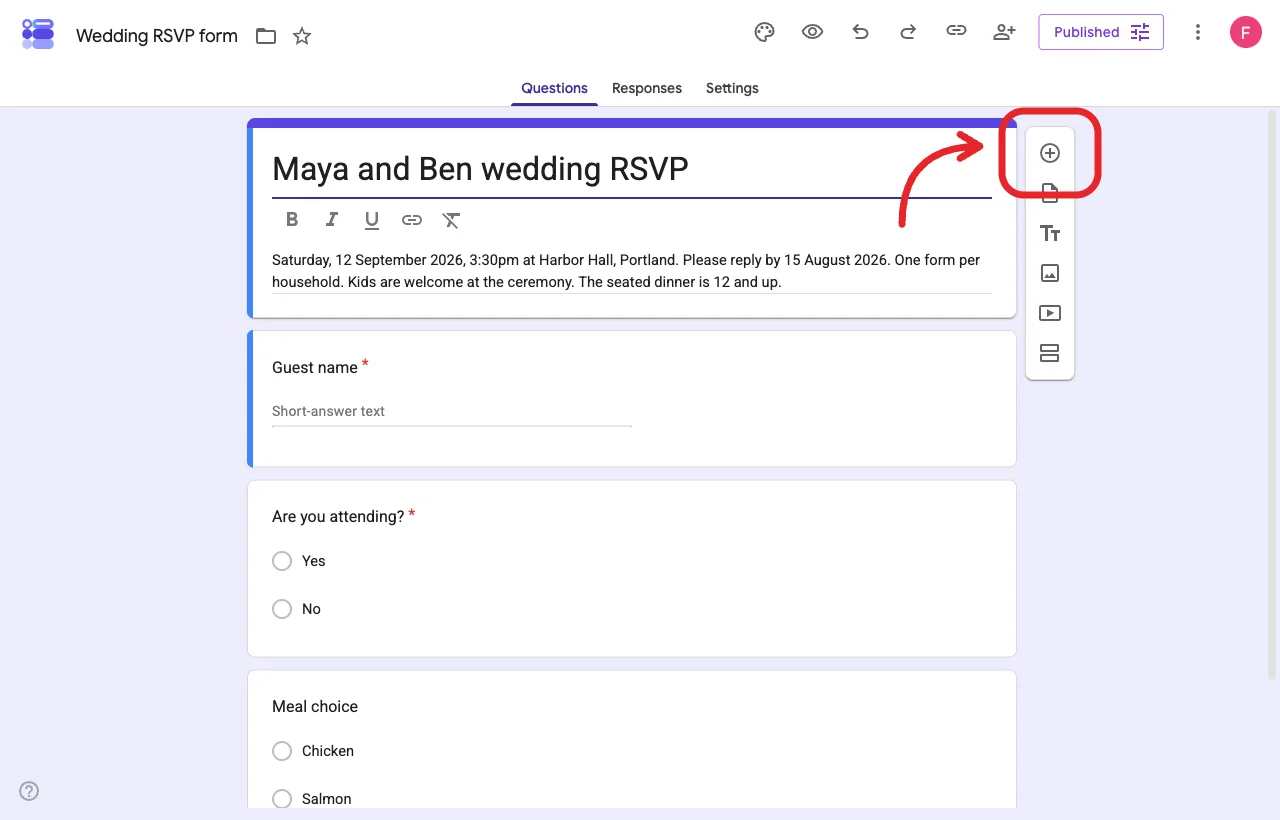
Guest name, attending, meal. Add more only if you need them.
Click Add to insert a question. Pick the type from the dropdown on the question card. Turn on Required for anything you cannot plan without. Google’s starter guide covers Add, Required, Description, and drag-to-reorder. See the same Create your first form page.
A working wedding RSVP uses a small set.
1. Guest name (Short answer, required)
Ask for the name on the envelope, not a nickname. If two households share a plus-one, you want the name you will actually put on the seating chart.
2. Are you attending? (Multiple choice, required)
Use two options: Yes, I will be there. No, I cannot make it. Skip Maybe. A maybe is a no for catering until it becomes a yes, and you will chase it by text anyway.
Google Forms calls a single-answer list Multiple choice. Checkboxes are the multi-select type. Do not use Checkboxes for yes or no.
3. Meal choice (Multiple choice)
List the plates you will actually serve. Example: Chicken, Salmon, Vegetarian, Kids plate. Add Other only if the kitchen can handle a write-in.
One row is then one person and one plate, so the Sheet counts the kitchen order for you. Count plates from that column, not from the number of rows.
4. Dietary notes (Short answer, optional)
Allergies and religious restrictions belong here. A short note is enough. You do not need a second menu in the form.
5. Song or notes for the couple (Paragraph, optional)
One fun field is plenty. People who want to leave a toast will use it. Everyone else can skip it.
One reply per guest, not one per envelope
Send the link to every guest and let each person answer for themselves. That is what keeps the five questions above as short as they are.
The household version, one reply covering two to four people, is where wedding RSVPs get tangled. Google Forms cannot repeat a question based on an earlier answer, and Required applies to everyone who reaches a question, so a single submission cannot ask a party of four for four meals and a solo guest for one. Work around it and you end up with a names Paragraph nobody fills in consistently and meal fields that come back half empty.
If the envelope has to be the unit, add a count question (Multiple choice, 1 to 4) and a names Paragraph, and use the form for a headcount: a buffet, a drinks reception, a ceremony-only number. The moment the caterer needs a plate per person, one reply per guest is the version Google Forms actually does well.
A few extras worth adding if they actually change the weekend:
- Welcome dinner or brunch (Multiple choice: Yes / No / Not invited to this event)
- Accessibility needs (Short answer)
- Hotel block interest (Multiple choice)
- Mailing address for a thank-you (Paragraph), only if you do not already have it
Leave out:
- Gift registry links inside the form
- A request for cash
- Travel itineraries
- Photo uploads (file upload questions also block some email embeds)
Sections help if the form grows. Click Add section so declines skip the meal page. After the attending question, click the menu on that question and set Go to section based on answer. Send No to a short “we will miss you” section. Send Yes to the rest of the form.
Sections run into the next one unless you say otherwise. At the foot of the decline section, set After section to Submit form. Skip that and someone who cannot come walks straight on into the meal question.
Customize the theme and header
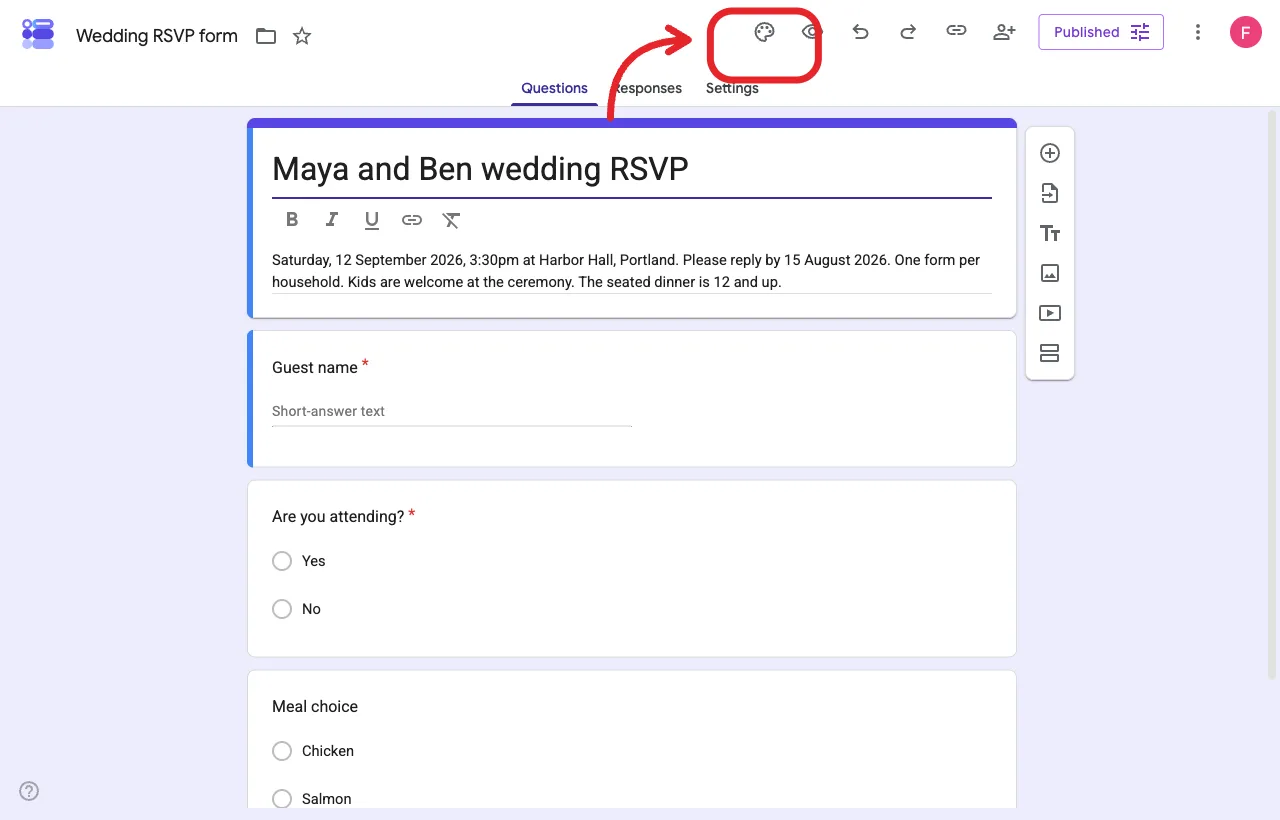
The palette opens colors, header, and font.
Open Customize theme (sometimes labeled Customize Theme) at the top right. Google documents this under color, header, and font. See Change the theme or font of your form.
Under Color, pick a theme color and a background. Add custom color if you have a hex from the invite suite. Under Header, click Choose image. You can pick a stock theme, upload a photo, use Drive or Photos, search Google Images, or paste a URL.
A wedding RSVP reads better with:
- A header that is a simple floral, a venue sketch, or a crop of the invite. A big photo of faces usually looks muddy on a phone.
- One theme color that matches the paper, not every color from the suite.
- Fonts you can actually read. Save the fancy script for the invite.
You can Reposition or Replace the header after you insert it. Crop so the important part sits in the wide banner. Close the theme panel and keep editing.
Workspace organizations can also apply a branded theme if an admin published one. Fine for a company party. For a Saturday wedding, pick something that looks like you.
Check Settings before anyone replies
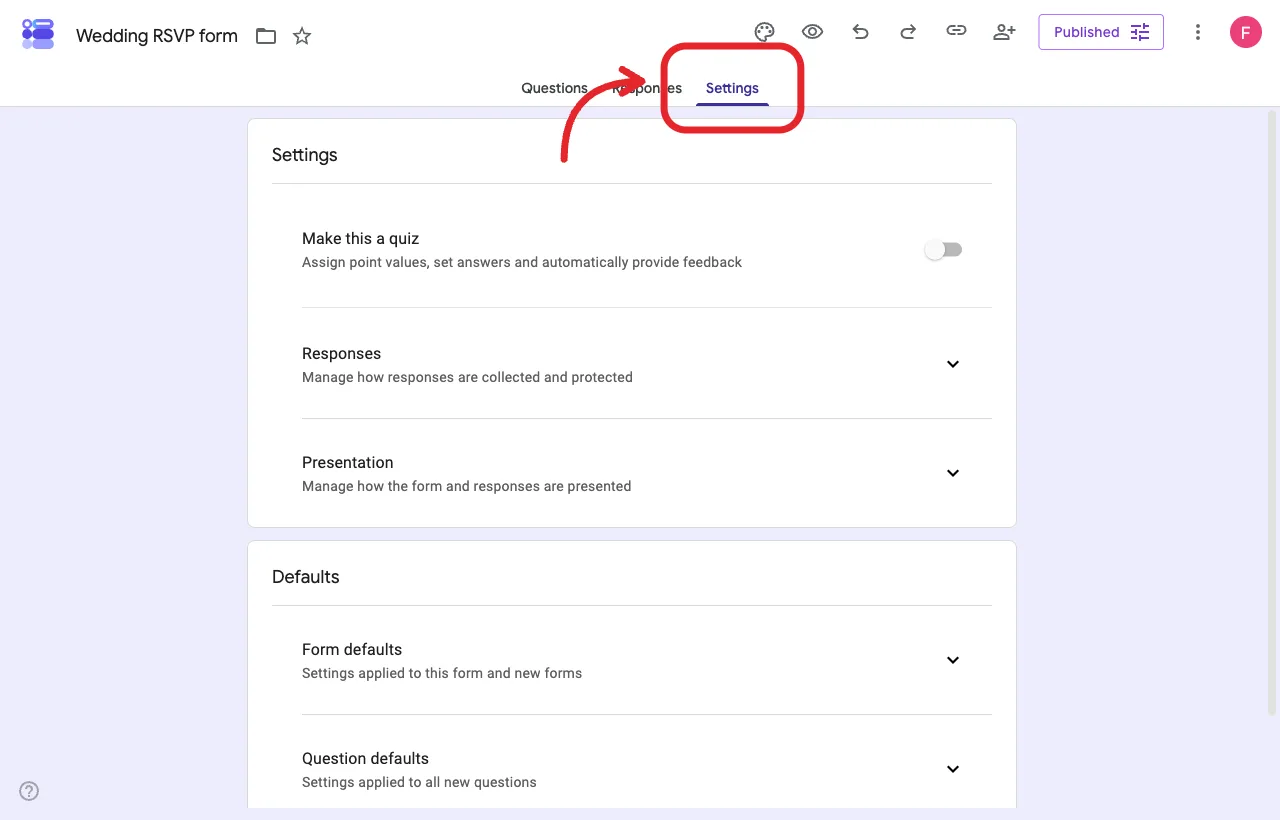
Open Settings, then expand Responses for email, one reply, and edit after submit.
Open the Settings tab at the top of the form. Expand Responses. These switches change how guests experience the RSVP.
Collect email addresses
Google lets you collect a Verified Google Account email or a Responder input typed email. Verified emails ask the guest to confirm their Google account on each page. That is tidy for a staff survey. For a wedding list with grandparents who do not use Gmail, it just gets in the way.
For a family RSVP, prefer Responder input if you need email at all, or add an Email question on the form and leave the setting off. You already have addresses on the invite list. Nobody should need a Google login just to say they are coming to dinner.
Limit to 1 response
Google documents this switch in the publish-and-share help article. When it is on, responders must sign in to a Google Account. Usernames are not stored unless you also collect emails. See Publish and share your form with responders.
Leave Limit to 1 response off for a wedding. Aunt Mei should not need a Google login to decline. If you worry about double submits, ask for the envelope name and clean duplicates in Sheets.
Allow response editing
Turn this on if you want guests to change a meal later. They get an edit link after they submit. Turn it off if you would rather take changes by text so you can log them.
Presentation
Edit the Confirmation message. A warm one-liner is enough: “Thank you. We have your RSVP for Maya and Ben, 12 September 2026.” Do not turn on View results summary. Guests should not see who else is coming.
Restrict to users in your organization
If you built the form on a work Google account, this may default on. Turn it off or guests outside the company domain cannot open the link. Personal Gmail forms do not show this lock the same way.
Preview the form, then Publish
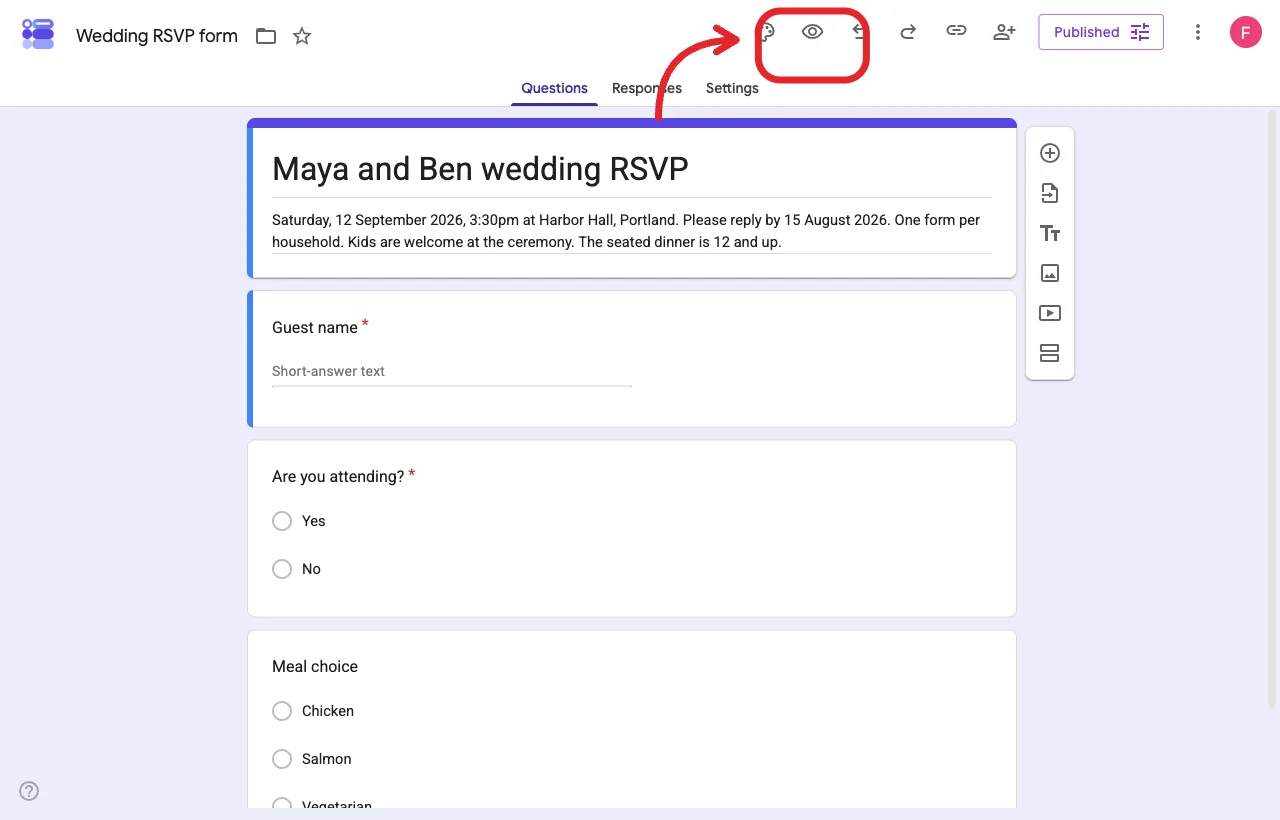
Preview first. Then Publish so guests can open the link.
Click Preview at the top right. The form opens in a new window. Walk it twice: once as a Yes, once as a No. Confirm required fields block an empty submit. Confirm a decline does not ask for salmon or chicken.
Google is explicit that responders cannot use an unpublished form, even if they have the link. When the questions are stable, click Publish at the top right. Use Manage if you need to limit who can respond. For a wedding list, set general access so anyone with the link can respond, then click Publish. The top right should read Published.
If you skip Publish and only copy a preview URL, relatives will hit a wall. Preview is for checking your work. Guests need the published link.
Tip: After you publish, treat question edits as live. A guest who already opened the tab may see the old version until they refresh. Finish the meal list before you mass-text the link.
Share the responder link
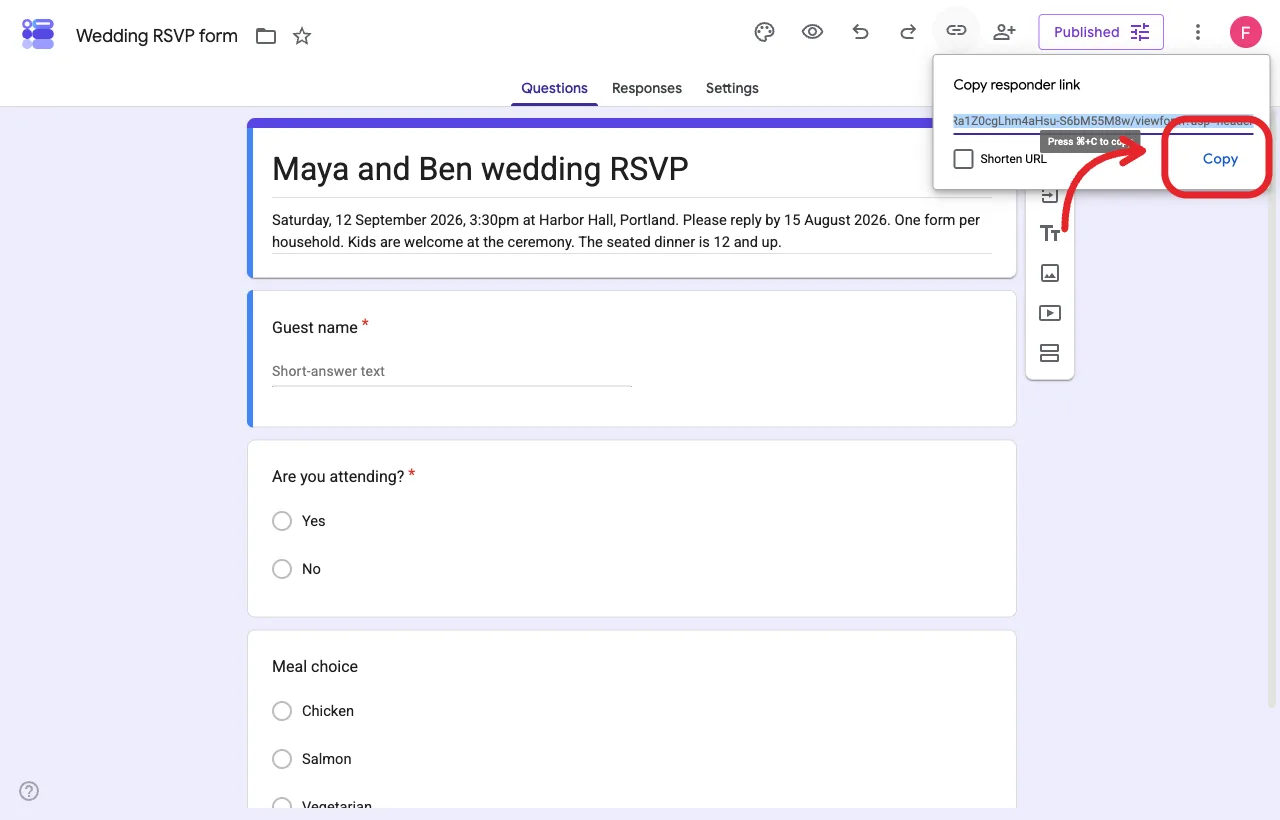
Copy the responder link. Put it on the invite, the site, and one email.
Google lists three ways to copy the responder link: Preview then Copy responder link, Published then Copy responder link, or Share then Copy responder link. After publish you can also tick Shorten URL and copy that shorter docs.google.com address. Details sit on the same publish and share page.
Put the link in:
- The wedding website RSVP page
- A follow-up email to people who have not replied
- A text to the handful of guests who ignore email
You can Share the form by entering email addresses and sending a notification. That is fine for a small dinner. For 120 guests in a few countries, one link on the website is easier.
Embed HTML
Embed HTML lives under the More menu. Paste the iframe on a site you control if you want the form on the page instead of a new tab. Check it on a phone. A long RSVP is often easier as a link.
Pre-fill form
Pre-fill form (More menu) lets you fill a field, then Get link. Use this if each guest should see their own name already typed. You will generate many links. Most couples skip pre-fill and ask guests to type the envelope name.
Do not give guests Editor access. Editor is for a planner or a partner. A guest with editor access can change questions and see every reply.
Read replies in Responses and Sheets
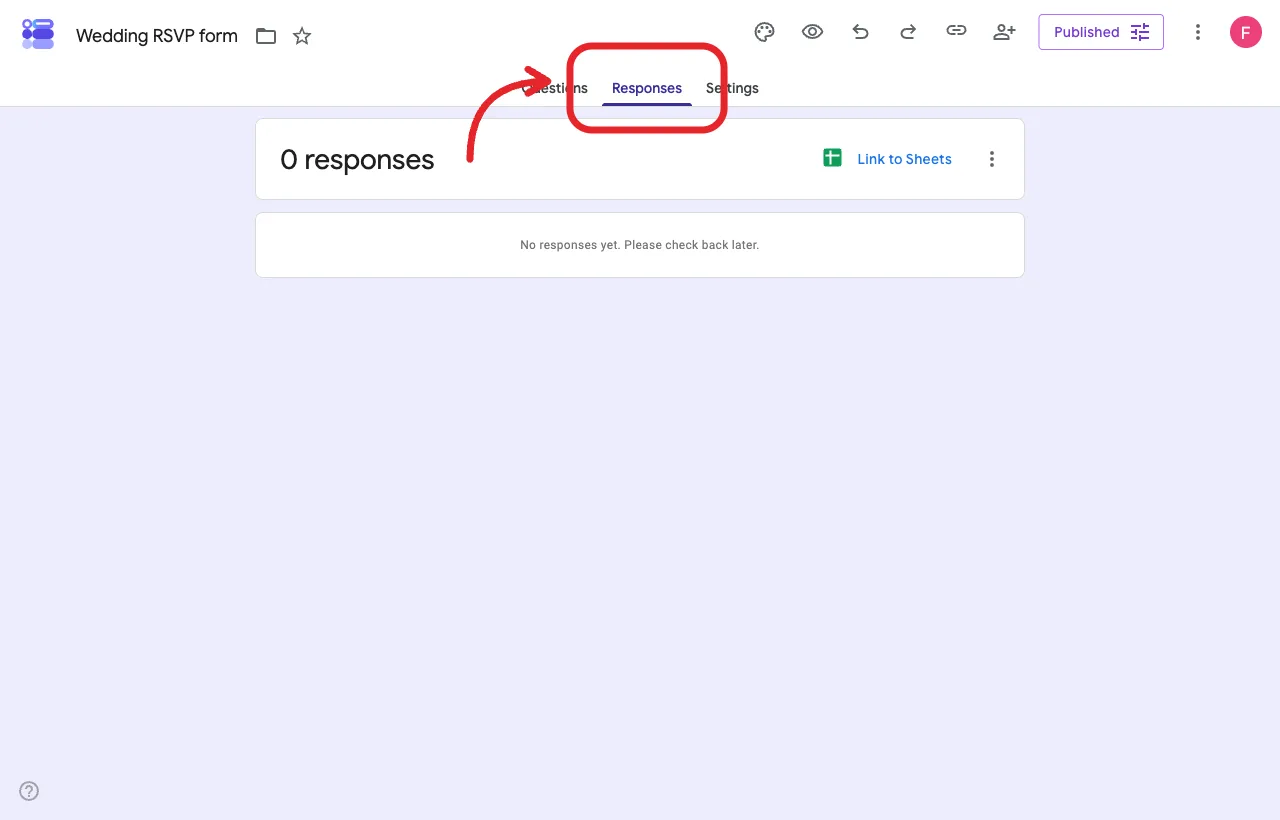
Summary for counts. Link to Sheets when you want a seating grid.
Open the Responses tab. Summary appears after the first reply and shows counts and charts. Individual steps through one reply at a time. Link to Sheets sends every row to a spreadsheet you can filter, color, and hand to the caterer. You can also download a CSV from More. See View and manage form responses.
A useful weekly rhythm:
- Open Sheets and scan new rows.
- Mark each row against the master guest list.
- Email or text anyone whose name does not match an invite.
- Turn on Get email notifications for new responses if you want a ping for each submit.
Google publishes operational limits for very large forms (tens of thousands of replies). A wedding will not hit those caps. What will bite you is messy names: “The Smiths”, “J and M”, and “see email” in the name field. Clean those the week they arrive, not the week of the seating chart.
If you collected emails and want guests to receive a copy of their answers, Settings lets you send a response copy When requested or Always. Most wedding guests do not need a receipt. The confirmation message is enough.
Close the form after your RSVP date
Published stays in the toolbar. Use it later to stop accepting responses.
You can stop the form in two ways.
On a published form, click Published and turn off Accepting responses. Guests who open the link see that the form is no longer accepting responses, or a custom message you write.
Or click Set close date or response limit under Accepting responses. Choose a date and time, then save. You can also cap the form after a number of responses. That number is awkward for a wedding, because declines count against it too. A calendar close is usually kinder.
Edit the closed message so it is kind and useful:
Replies for Maya and Ben closed on 15 August. If your plans changed, please text Maya.
Google notes that unpublished forms cannot accept responses, and that a burst of simultaneous submits can sneak past a numeric cap. For a wedding, the date close plus a personal text thread for exceptions is enough. The help steps live on View and manage form responses.
Leave the form published but closed if people still click the button on the website. A closed form with a short note is better than a dead link.
Build the same wedding RSVP in Formms
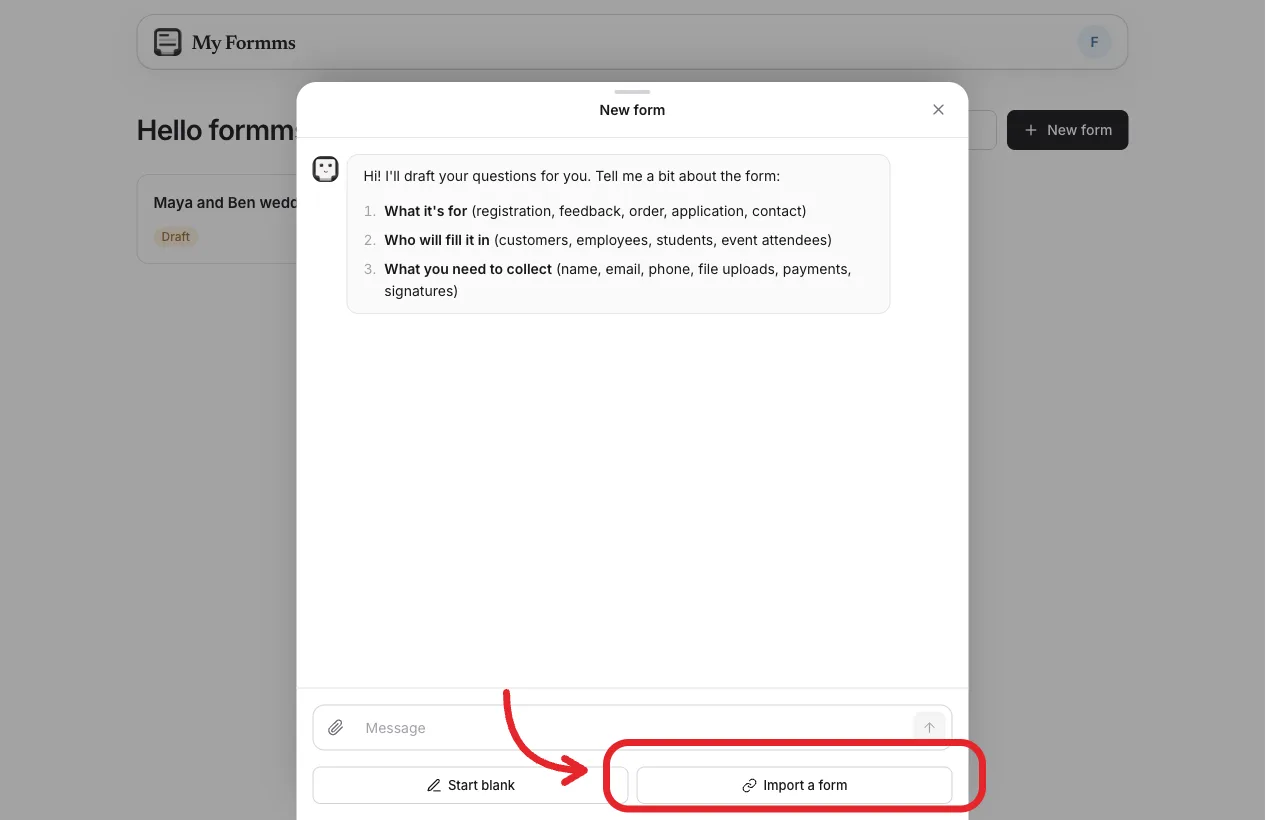
New form, then Import a form.
Google Forms is enough when everyone is happy with a docs.google.com link and a Sheet. If you want a short public URL, a downloadable QR code, and a website or WordPress embed, put the same RSVP in Formms at form.ms/dashboard. The same Formms account works on iPhone and Android too. For print (a rehearsal-dinner sign or a program insert), see how to make a QR code for a form.
Do not rebuild the questions. Copy the Google responder link you just made. On the dashboard click + New form, then Import a form.
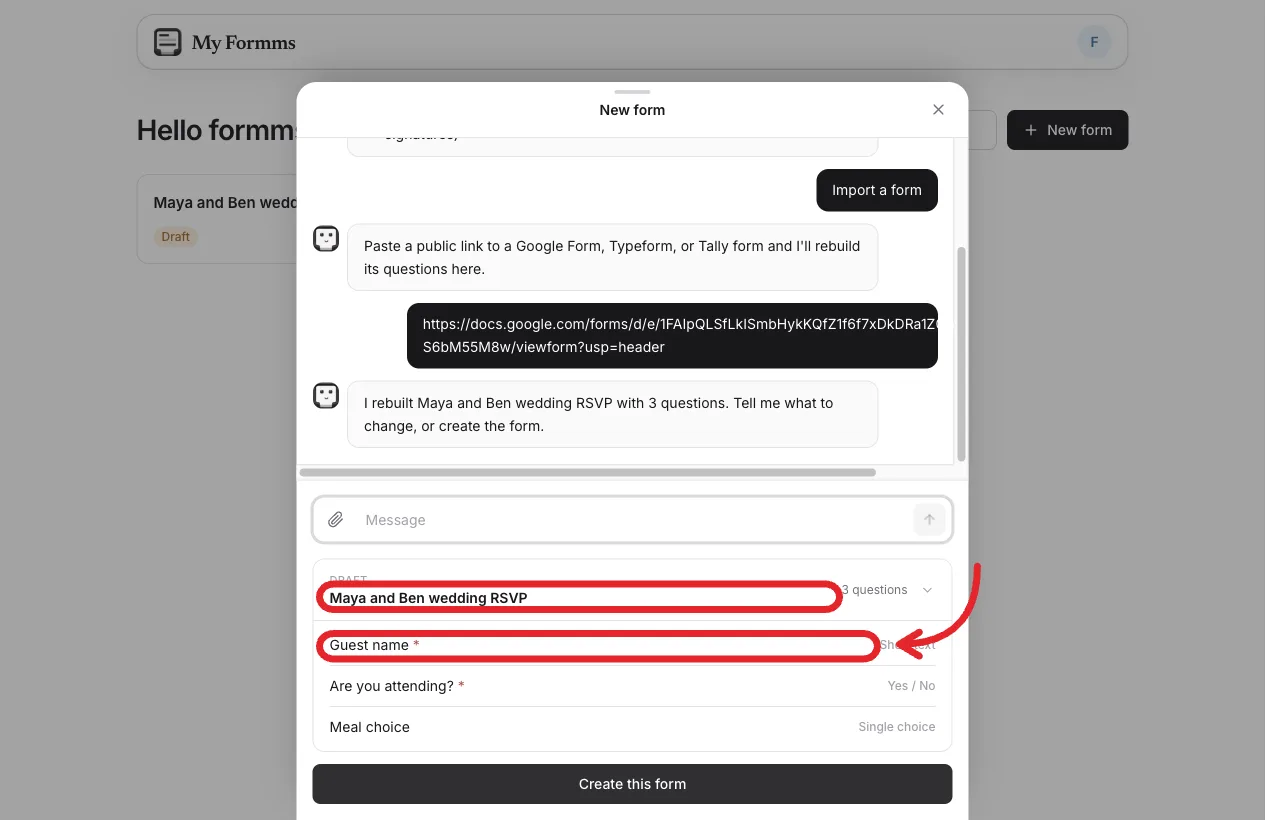
Paste the Google link. Formms rebuilds the same questions.
The helper asks for a public Google Form, Typeform, or Tally URL. Paste the responder link and send. You should see the same title and the same fields, here Guest name, attending, and meal choice. Click Create this form.
Open Build and check every option. Formms uses Single choice when a guest should pick one answer (attending, meal). Multiple choice is multi-select. Fix the types if the import mixes them up. Use Preview form to walk a Yes and a No. Click Publish. After the first publish, you land on Share.
On Share you get Link, Website, WordPress, Tag Manager, and QR. The public URL looks like form.ms/xxxxx. Use Copy or Open form. Download the QR for a rehearsal-dinner sign or a program insert.
Open Settings, then Responses:
- Accept responses stays on while you collect replies
- Close on a date is the RSVP deadline
- Limit responses shows the placeholder No limit. Leave it blank so every guest can reply. Collecting responses stays free.
Guests do not create an account. Skip payments, cash gifts, and e-sign on this RSVP. Those belong on the registry or a note on the website.
Import copies questions, not section logic. Formms has no conditional branching, so the decline shortcut does not come across and cannot be rebuilt there. That costs you nothing on a one-reply-per-guest form: a guest who is not coming answers No and skips the rest by hand. Import also leaves your Google close date behind, so set Close on a date again before you publish.
Frequently asked questions
Does Google Forms still have an RSVP template?
Many personal accounts still show RSVP (sometimes Event RSVP) in Template gallery under Personal. Google does not publish a permanent template list in Help. If the tile is missing, start from Blank form. The questions in this article replace the template.
Should guests have to sign in with Google?
No, not for a wedding. Leave Limit to 1 response off, and avoid Verified email collection. Those settings force a Google Account.
Can someone change their meal after they submit?
Turn on Allow response editing in Settings, Responses. Or keep it off and take changes by text so you control the Sheet.
How do I stop replies after the RSVP date?
On a published form, open Published, then set a close date or turn off Accepting responses. Write a closed message that points people to a phone number.
Can I put the form on our wedding website?
Yes. Use More, Embed HTML in Google Forms, or Share, Website / WordPress in Formms after you publish there.
Do I need a paid Google account?
A personal Gmail account can create the form, publish it, and link Sheets. Gemini’s Help me create a form needs an eligible plan and may not appear on every account.
Will Formms collect unlimited wedding replies?
In Settings, Responses, leave Limit responses blank. The placeholder is No limit. Guests do not log in.
Can Formms take card payments or cash gifts on this RSVP?
No. Do not add a payment field to the RSVP. Use the registry or a separate note on the website.
Finish the form, then send one link
At this point you have a wedding RSVP Google Form with a title guests will recognize, a short question list, a theme, settings that do not force a login, a published responder link, and a plan to close on a date.
Put the link in one place people already look, usually the wedding website. Check Sheets once a week. Close the form on the date you printed on the invite. If you want a short form.ms URL or a QR code, you can publish the same questions in Formms, or import the Google Form you just made. Collecting replies stays free; how to create a free form with unlimited responses walks through that path. If you would rather build on a phone, see how to make a Google Form on your phone.
The paper invite can stay paper. The reply can live in a link.