Blog / Form Building
How to Create a Free Form With Unlimited Responses
Context
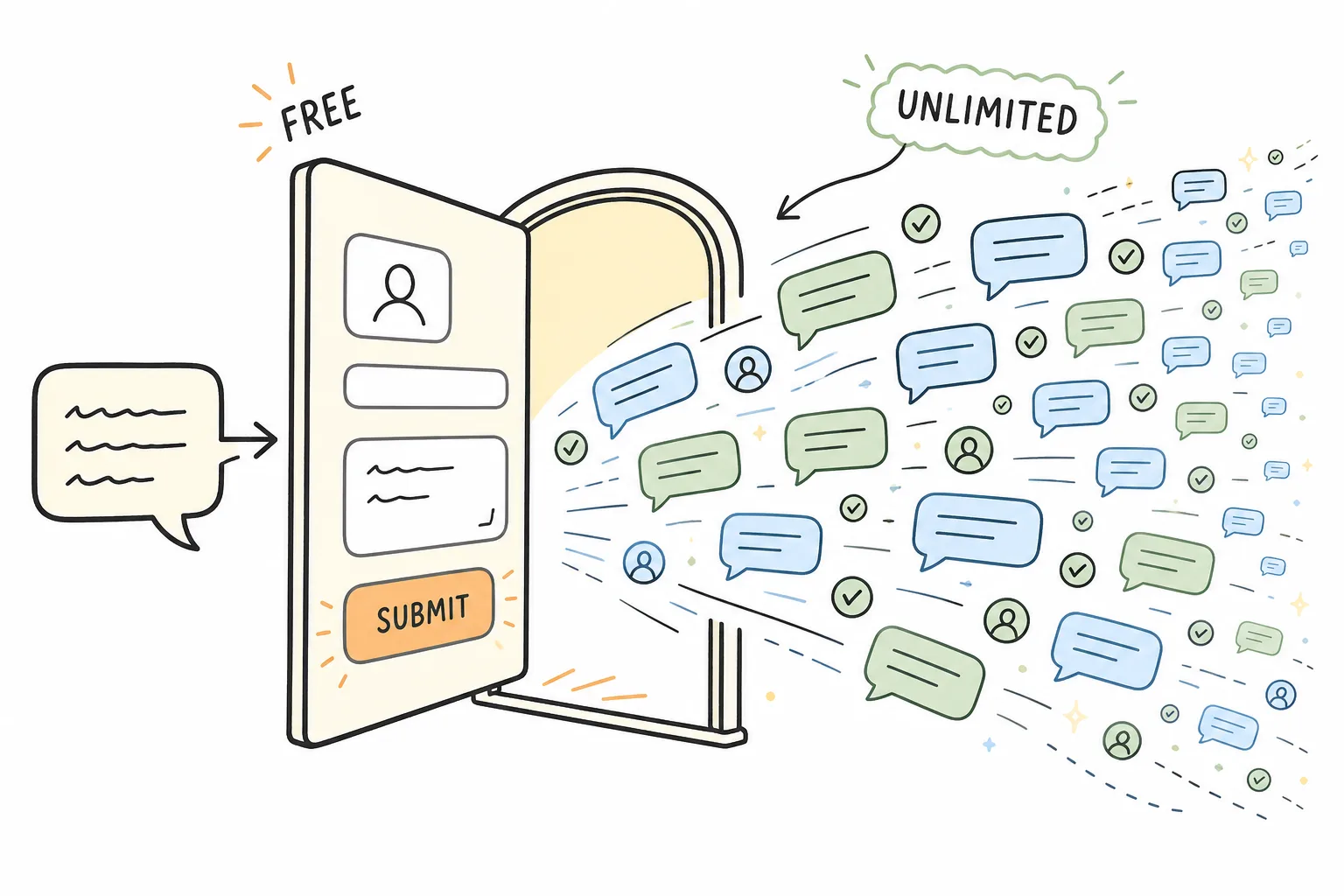
A step-by-step walkthrough of building a free online form with AI, sharing a short link or QR code, embedding it on your site, and collecting unlimited responses.
On this page
Formms is a free AI form builder. Describe the form, edit the questions, share a short link or embed, and collect answers with no response cap.
This walkthrough uses the Formms web app at form.ms/dashboard. The same steps work in the iPhone and Android apps: your account stays in sync, so a form you start on the web is right there on your phone, and the other way around.
The worked example is a Maple Street Block Party RSVP, created from a blank New form dialog through Publish. You can copy the same flow for a cafe survey, a job application, a product waitlist, or a client inquiry.
What you get on the free plan
- Unlimited responses (the limit field is empty by default: “No limit”)
- No respondent login
- Website, WordPress, and Google Tag Manager embeds for published forms
- A short
form.ms/xxxxxlink and a downloadable QR code - CSV export and phone notifications when answers arrive
Collecting responses will stay free even if we add a paid plan later for extra features. See the FAQ.
1. Open the dashboard and start a new form
Go to https://form.ms/dashboard and sign in. You should see Hello [your name] and a black + New form button. If you land on a login screen instead, you are not signed in yet.
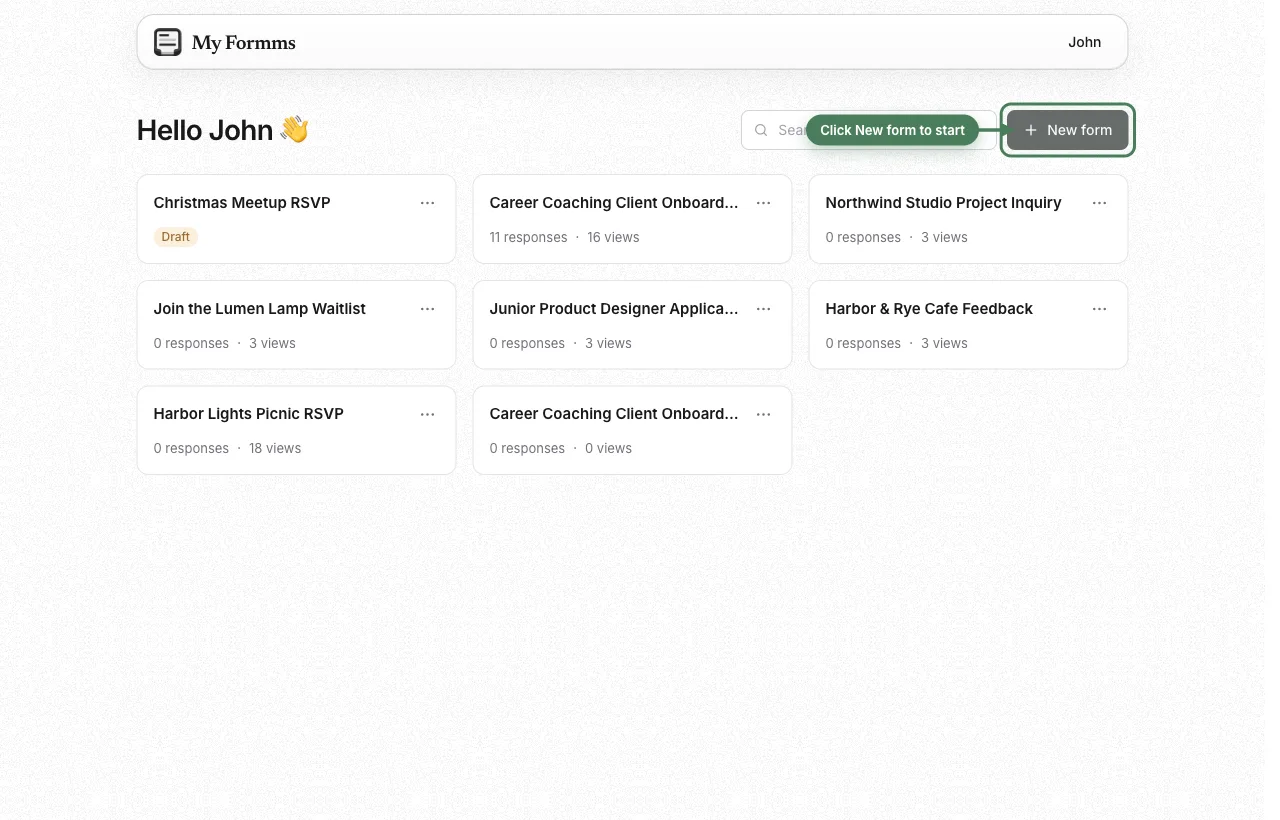
Click + New form. You can start blank, import a Google Form / Typeform / Tally form, or tell the AI what you need.
2. Describe the form in plain language
The New form dialog asks for three things:
- What it is for (registration, feedback, application, contact)
- Who will fill it in
- What you need to collect
You do not have to write it as a numbered list. One paragraph is enough. Example used for this walkthrough:
Create an RSVP form for a Saturday afternoon neighborhood block party called Maple Street Block Party. Attendees are neighbors and friends. Collect full name, email, number attending (1 to 6), arrival time preference (2pm / 3pm / 4pm), dietary needs, whether they can bring a dish, and accessibility needs. Keep it short and friendly.
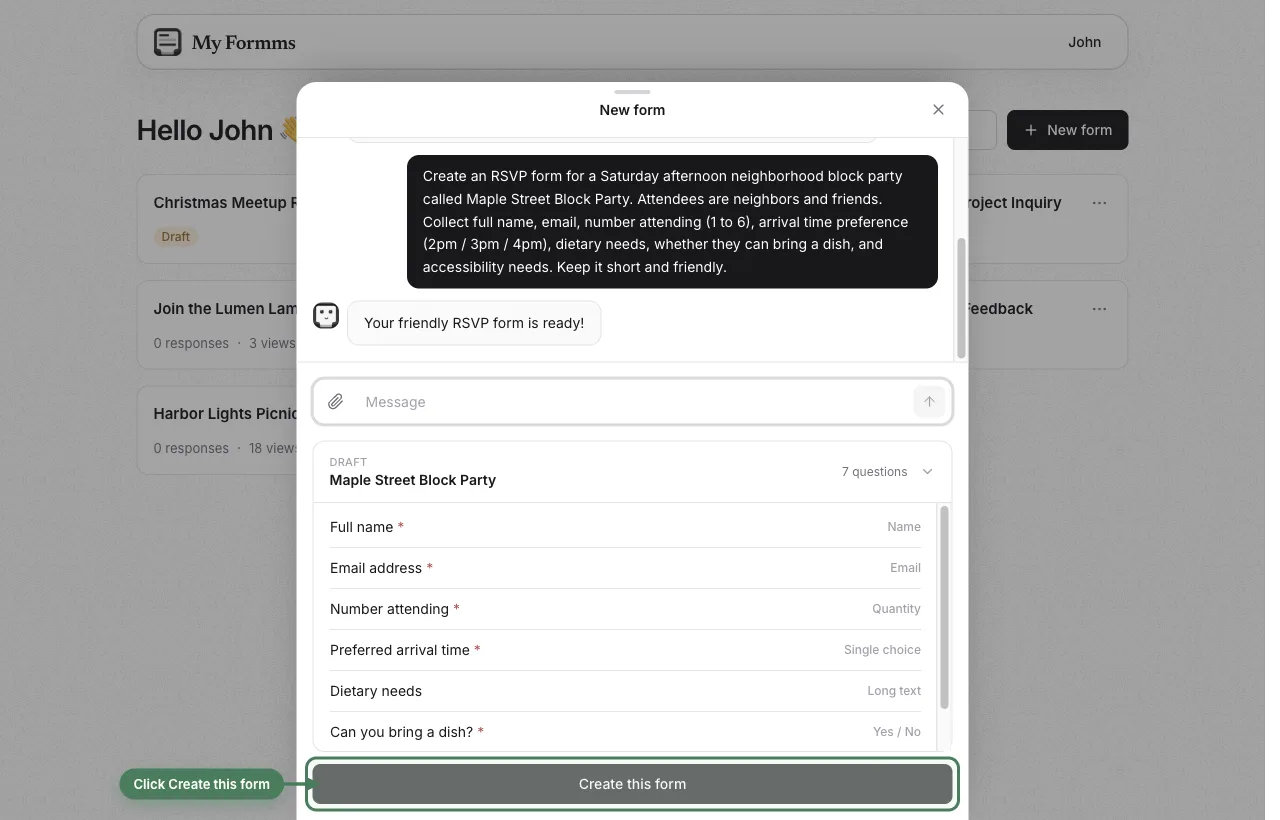
The draft shows each question and its type (Name, Email, Quantity, Single choice, Long text, Yes / No). If something is off, send another message. When it looks right, click Create this form.
3. Edit in the builder, then publish
You land in Build. Click any question to edit the label, help text, options, or required flag. Drag to reorder. Use Add a question or Chat to Edit if you want AI to revise the whole form.
On a new form the toolbar still has Publish. That is this step. After you click it once, Publish leaves the toolbar and Preview stays.
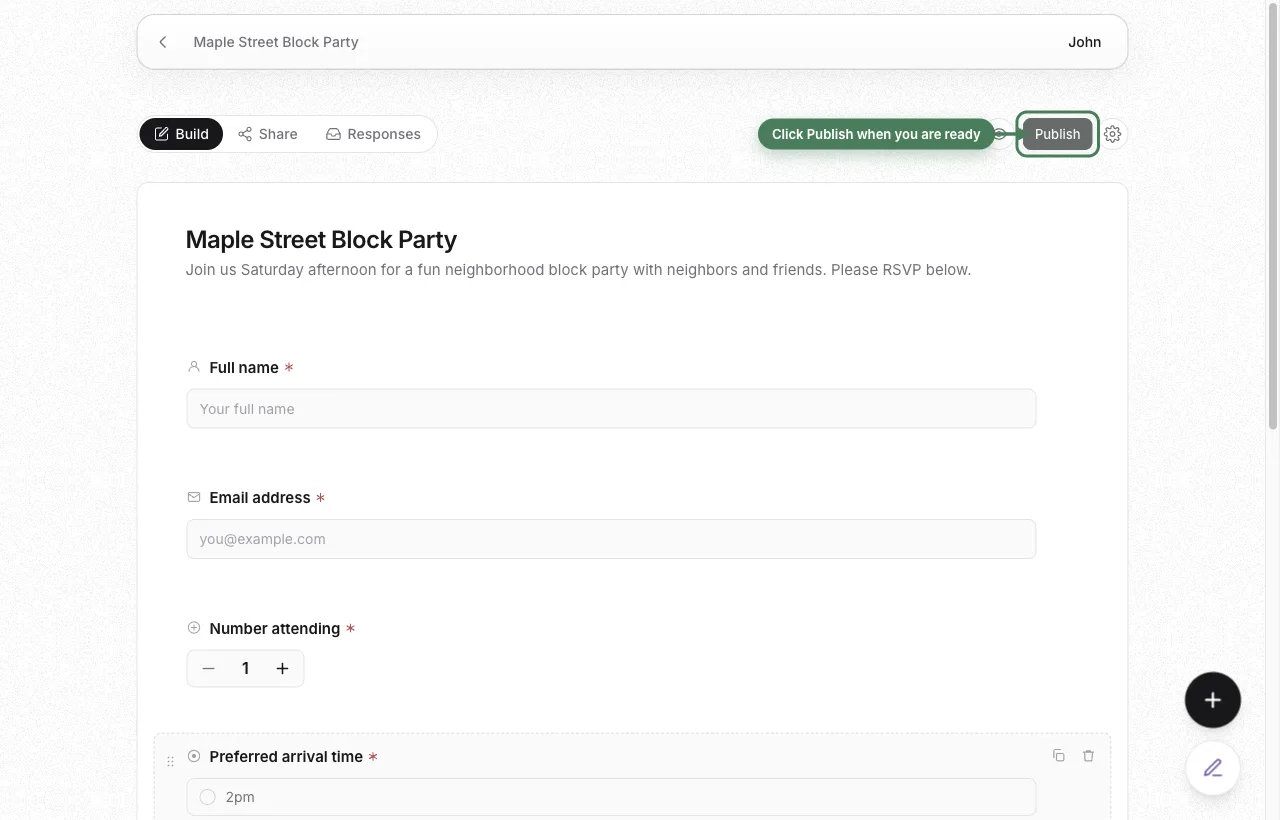
When you are happy with it, click Publish. Formms takes you to Share.
4. Share a short link (or a QR code)
Every form gets a short public URL. This RSVP is https://form.ms/be4we7.
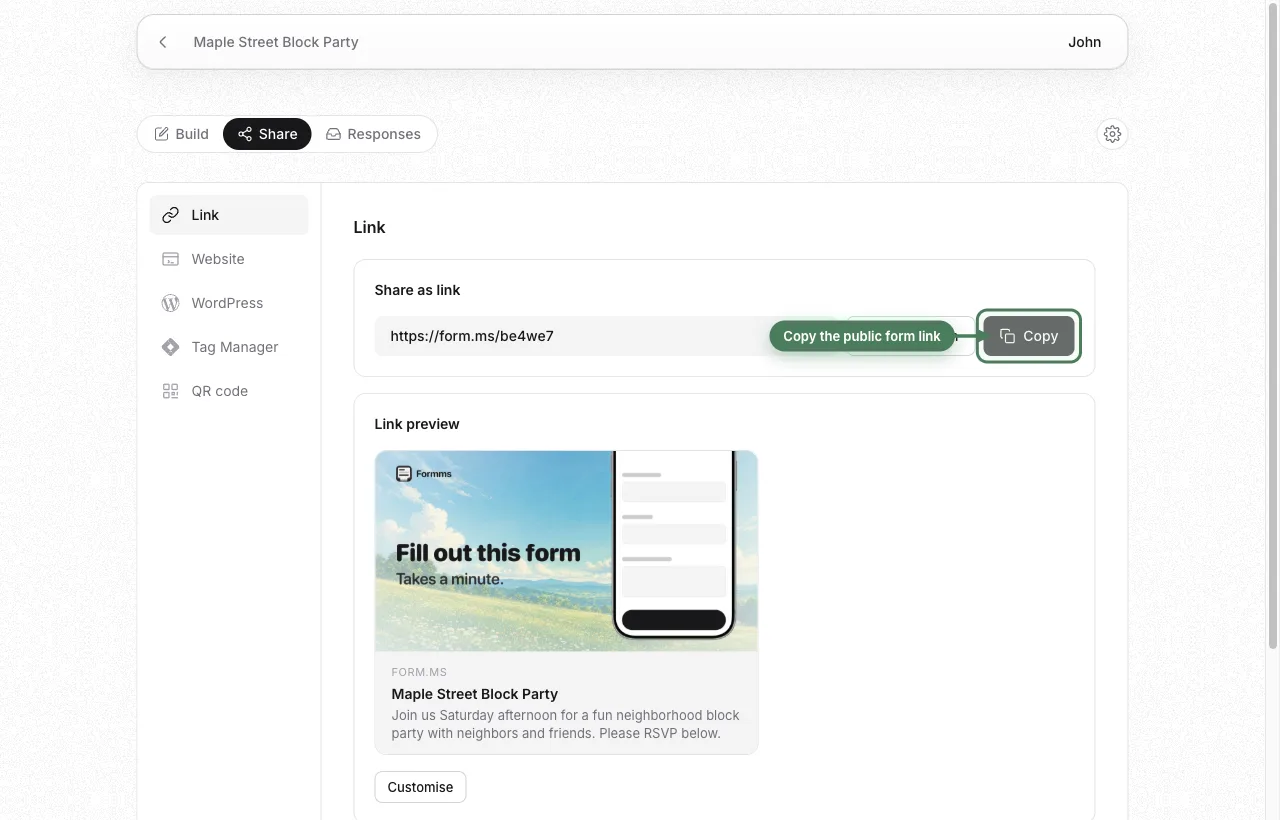
People filling it in do not need an account or the app. Copy the link, or jump to QR code and download it for a flyer or a screen.
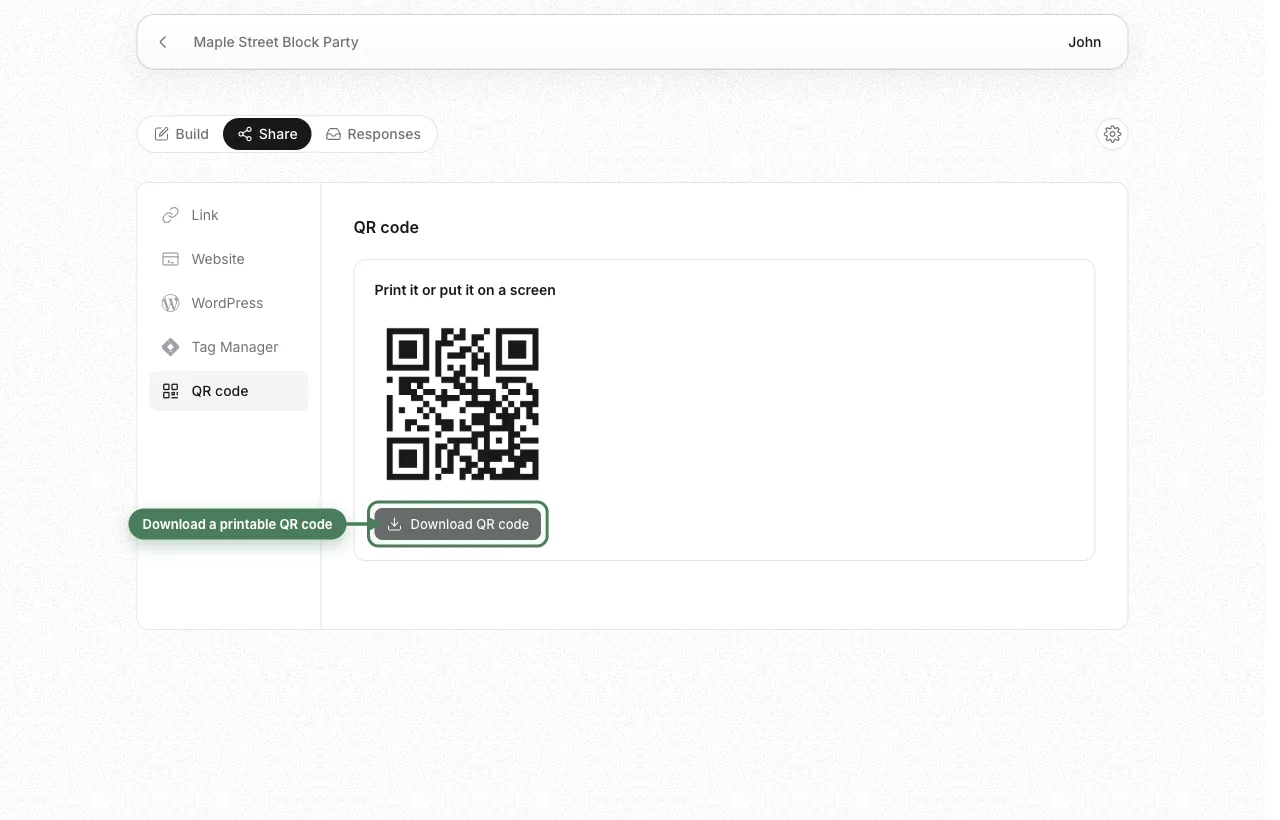
To put the form on your own site instead, use the embed snippet in the next step.
5. Embed on your website
Open Share → Website. Leave Standard selected (the form sits in the page and grows with the questions). Copy the snippet.
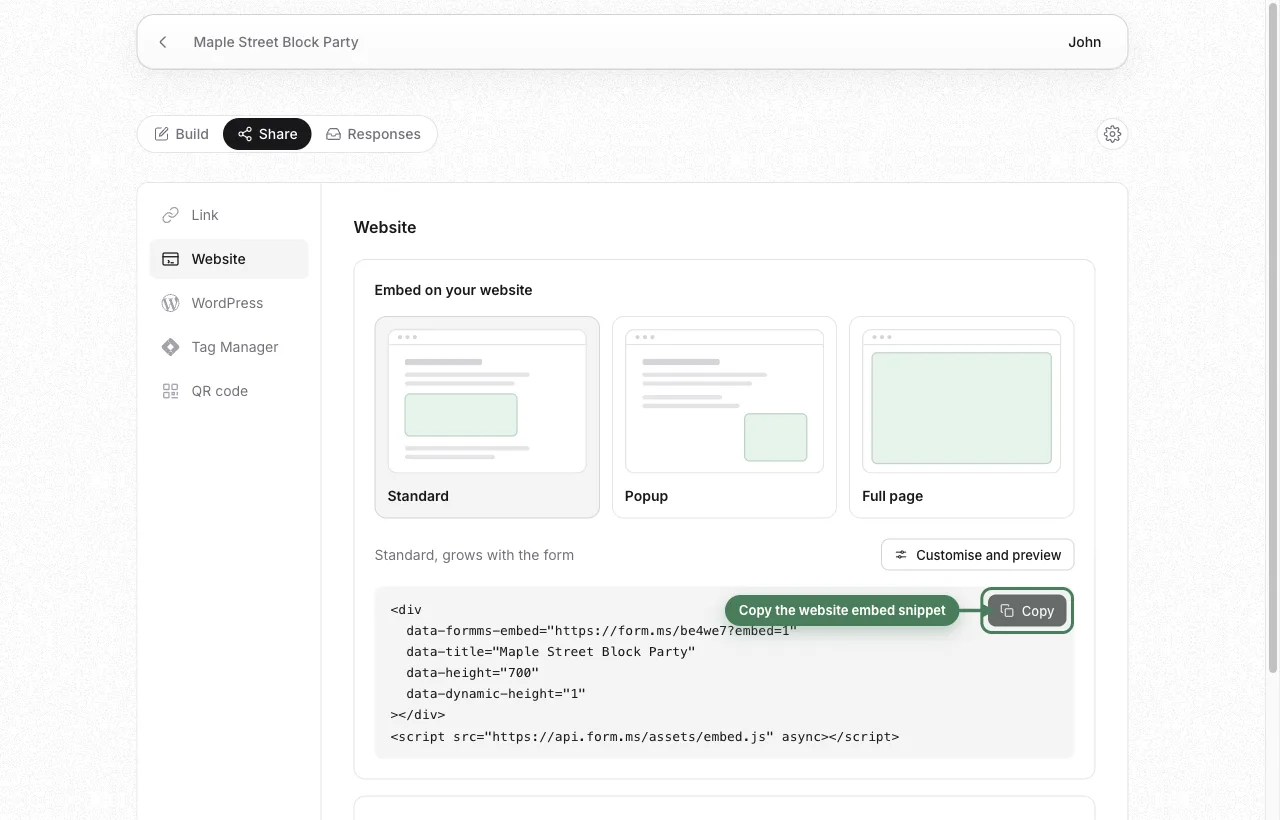
<div
  data-formms-embed="https://form.ms/be4we7?embed=1"
  data-title="Maple Street Block Party"
  data-height="700"
  data-dynamic-height="1"
></div>
<script src="https://api.form.ms/assets/embed.js" async></script>
Paste that into an HTML / code block on your site. Replace the form URL with yours and leave the rest of the snippet as Formms generated it.
You also get Popup (opens over the page) and Full page (fills the window). Use Customise and preview if you want to check height before you paste.
WordPress
Share → WordPress gives an iframe snippet:
<iframe
  src="https://form.ms/be4we7?embed=1"
  title="Maple Street Block Party"
  width="100%"
  height="700"
  style="border:none;max-width:100%"
  loading="lazy"
></iframe>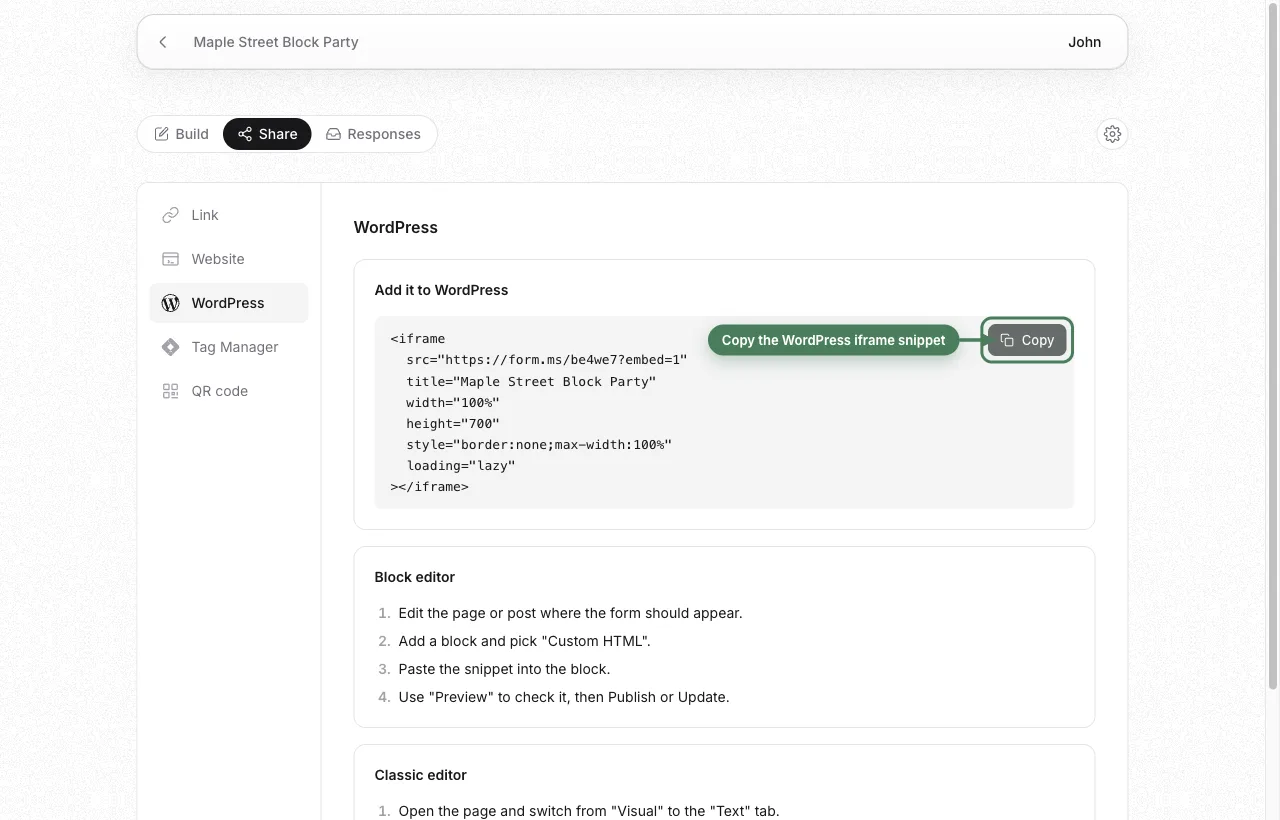
In the block editor: Custom HTML block → paste → preview → update. In classic: switch to the Text tab, paste, update.
There is a Tag Manager option on the same Share screen if you would rather inject the snippet through GTM.
6. Keep responses unlimited
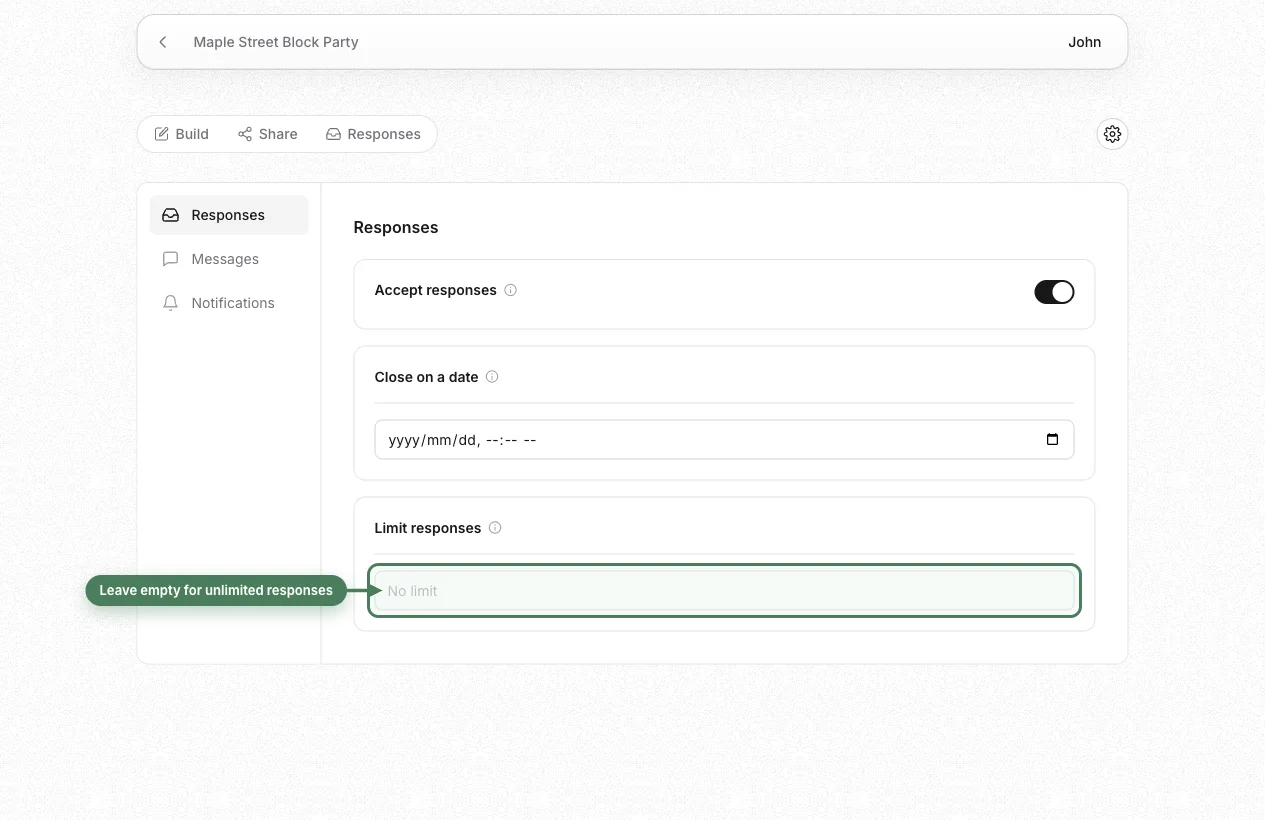
Open the gear → Responses. Three controls:
- Accept responses: on by default
- Close on a date: optional
- Limit responses: placeholder is No limit
Leave the limit blank. That is unlimited collection on the free tier. Only fill it in if you want a cap (workshop of 50, giveaway of 100, and so on).
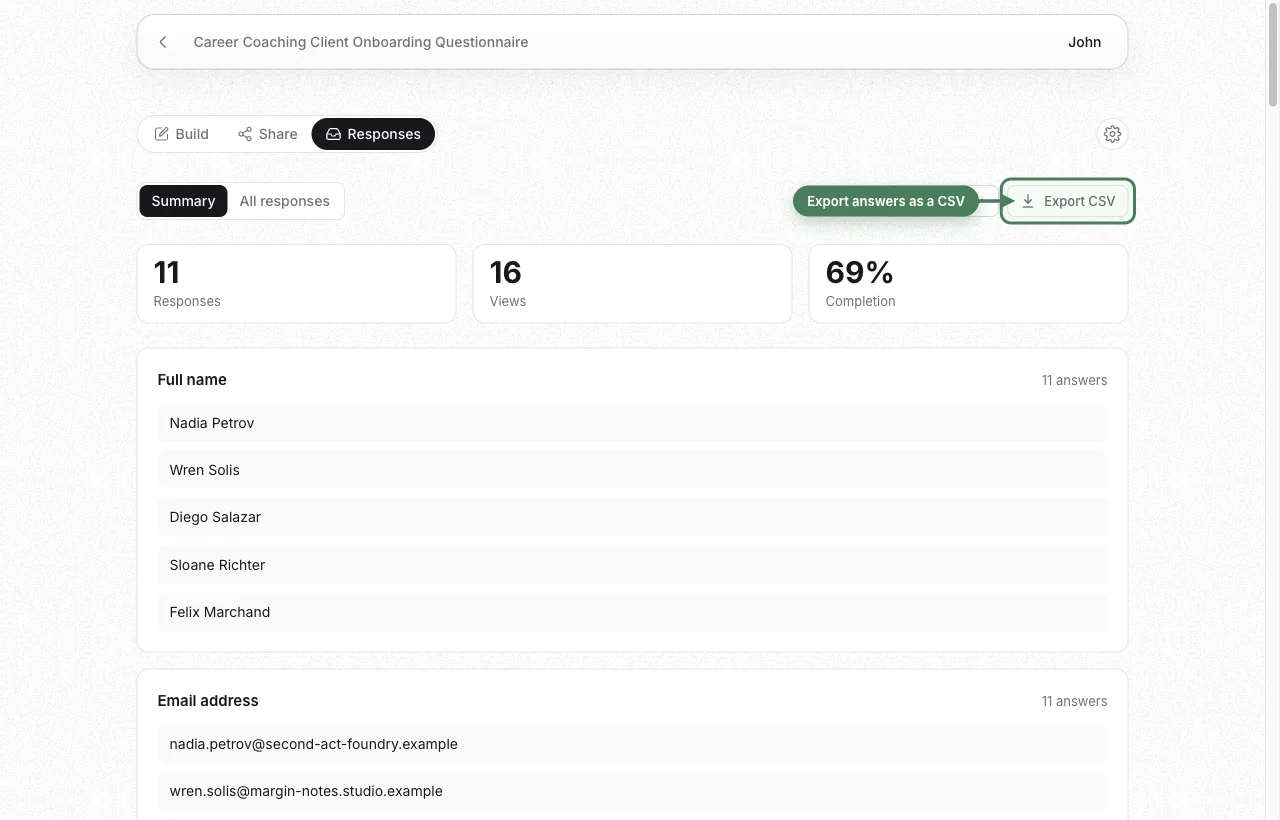
Answers land under the Responses tab. Summary shows totals, charts for choice questions, and a list for text answers. Export CSV is on the same screen. A coaching questionnaire in this account is at 11 responses / 16 views with no upgrade prompt.
Turn on Notifications in form settings if you want each new answer emailed to you.
7. Five form types you can copy
Same builder, five different jobs. Each one was generated from a prompt, published, and given a live link.
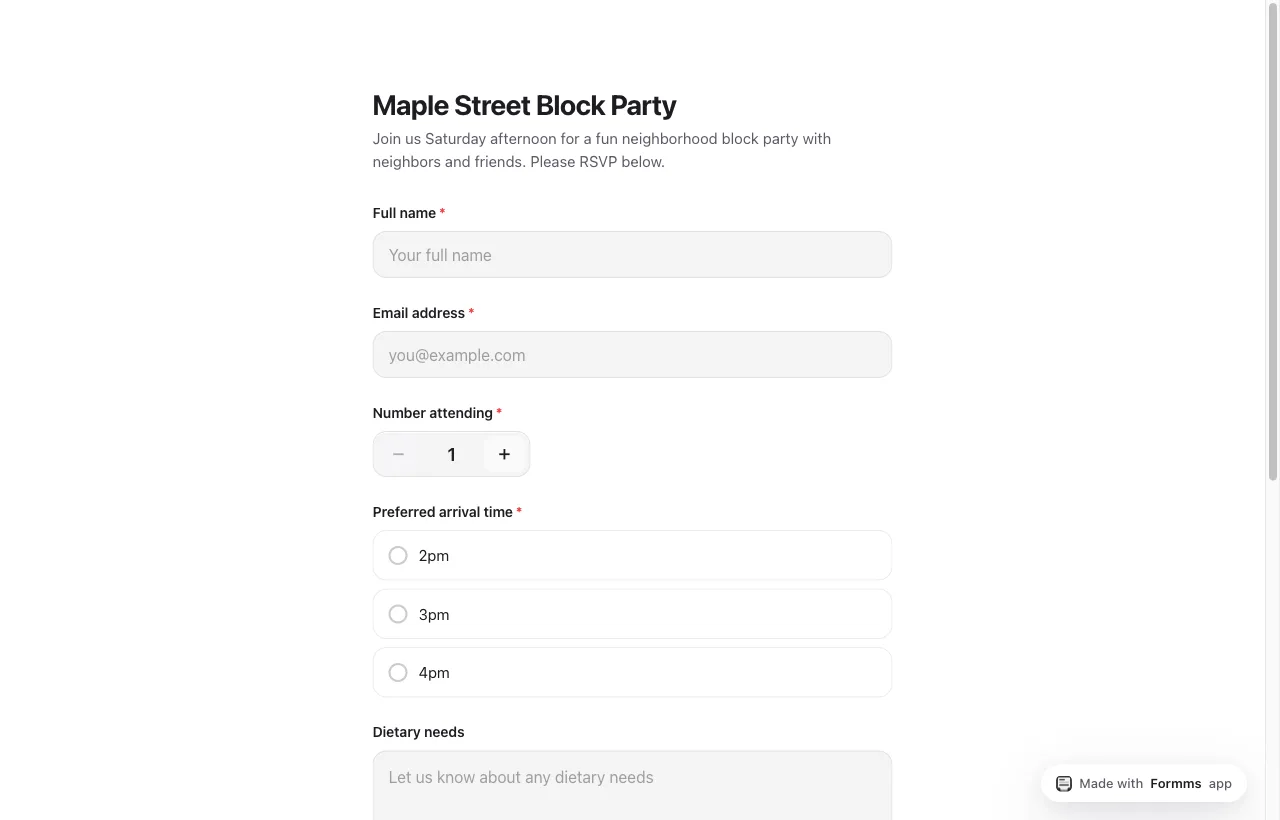
Event RSVP: Maple Street Block Party
Neighbors, not a conference. Quantity stepper, arrival-time radios, dish yes/no, dietary and accessibility notes.
Live form: https://form.ms/be4we7
Prompt to reuse
Create an RSVP form for a Saturday afternoon neighborhood block party called Maple Street Block Party. Attendees are neighbors and friends. Collect full name, email, number attending (1 to 6), arrival time preference (2pm / 3pm / 4pm), dietary needs, whether they can bring a dish, and accessibility needs. Keep it short and friendly.
Put the QR on the flyer. Embed the form on the event page if you want it on the site too.
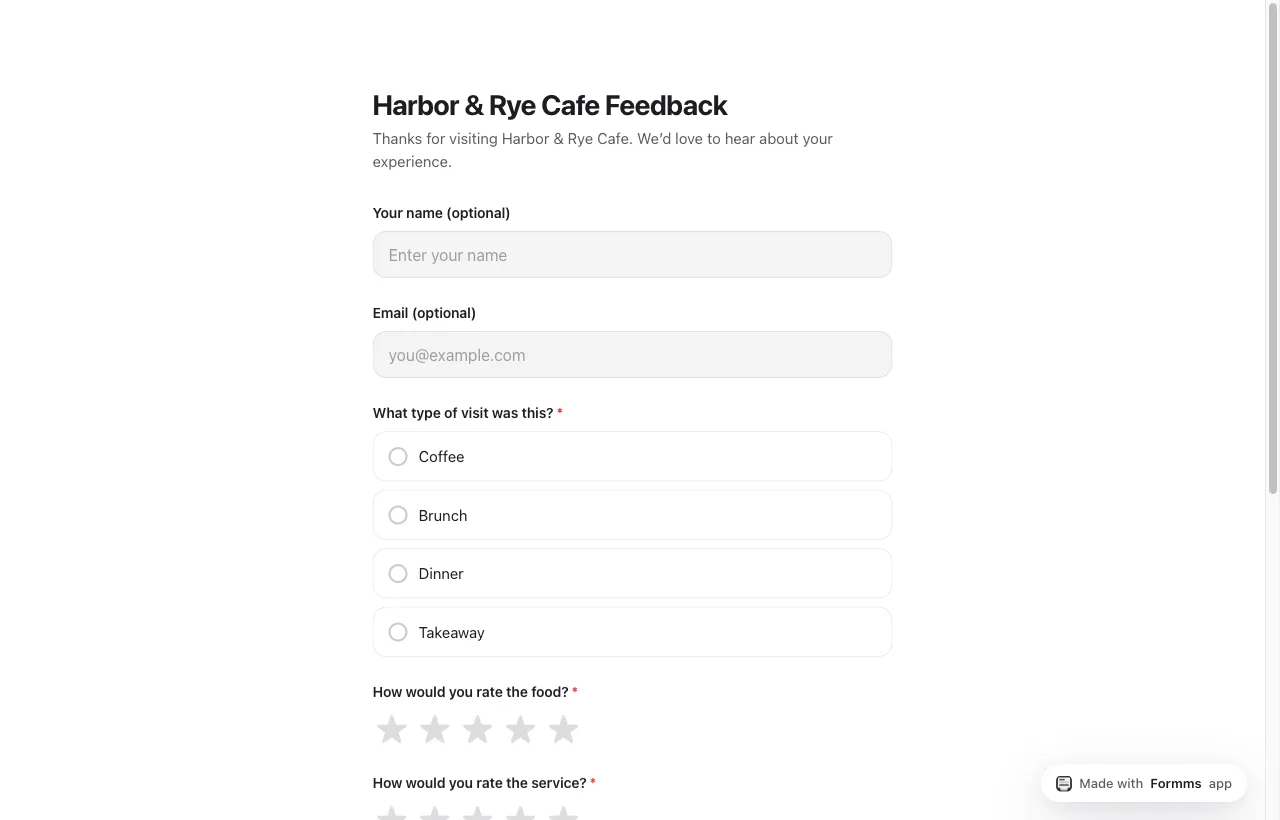
Customer feedback: Harbor & Rye Cafe
Optional name and email so more people finish it. Visit type, two star ratings, recommend yes/no, one improvement.
Live form: https://form.ms/edyb7n
Prompt to reuse
Create a customer feedback form for Harbor & Rye Cafe. Customers who just visited will fill it in. Collect name (optional), email, visit type (coffee, brunch, dinner, takeaway), star rating for food, star rating for service, would they recommend us (yes/no), and one thing we could improve. Warm and short.
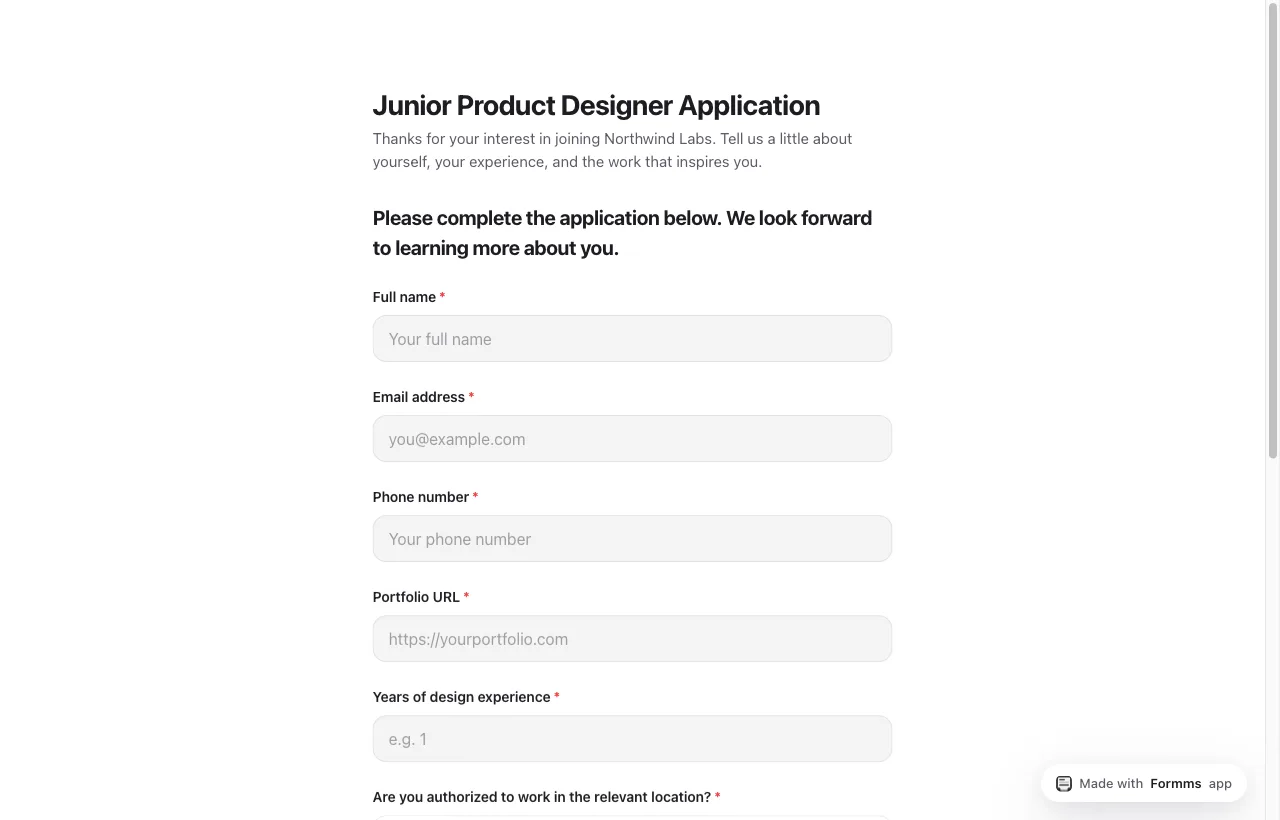
Job application: Junior Product Designer
Name, email, phone, portfolio URL, years of experience, work authorization, a product they admire, resume upload.
Live form: https://form.ms/429e3t
Prompt to reuse
Create a job application form for a Junior Product Designer role at Northwind Labs. Applicants will fill it in. Collect full name, email, phone, portfolio URL, years of experience, work authorization, a short note on a product they admire, and a file upload for their resume. Professional but human.
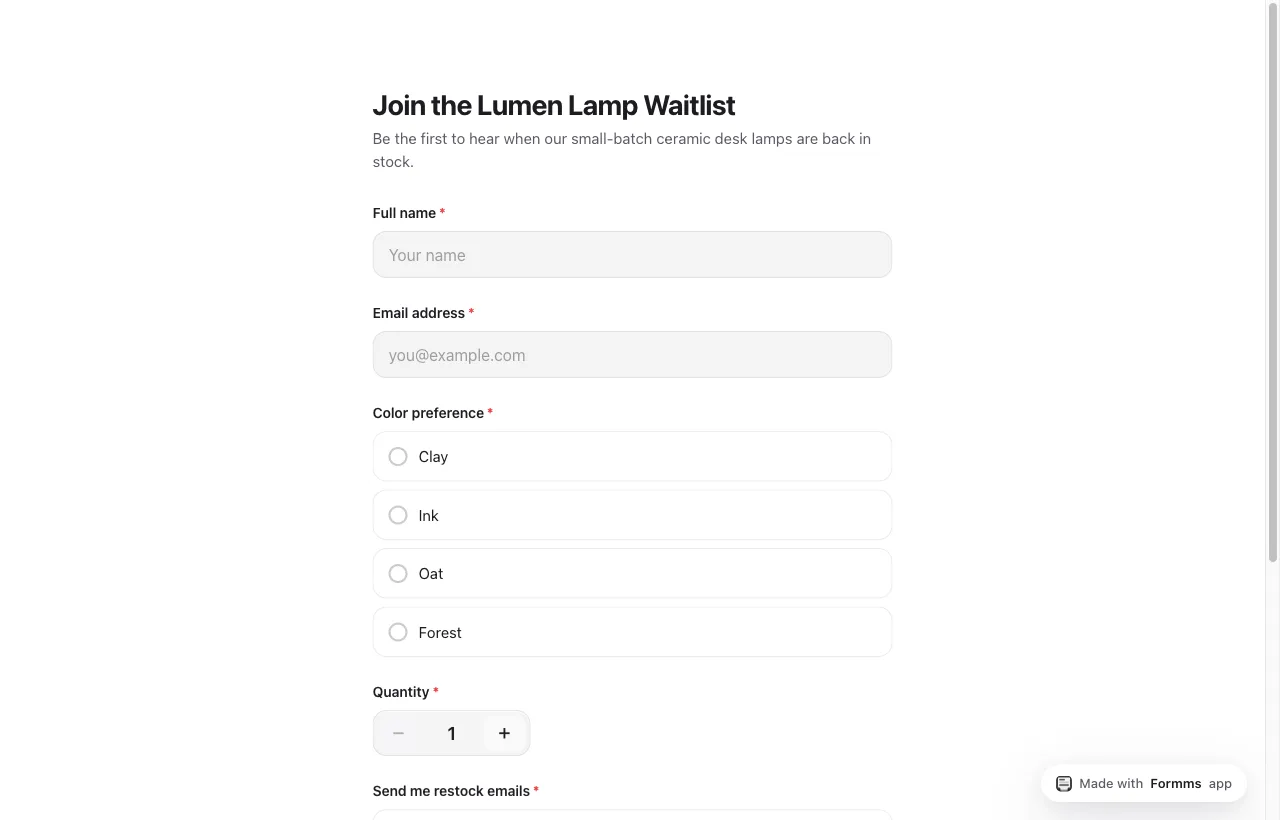
Product waitlist: Lumen Lamp
Name, email, color (clay / ink / oat / forest), quantity, restock emails, city.
Live form: https://form.ms/46bcyy
Prompt to reuse
Create a product waitlist form for Lumen Lamp, a small-batch ceramic desk lamp. Shoppers will fill it in. Collect name, email, color preference (clay, ink, oat, forest), quantity, whether they want restock emails, and city. Short and product-page friendly.
Embed this one on the product page with the Standard website snippet so the listing stays clean.
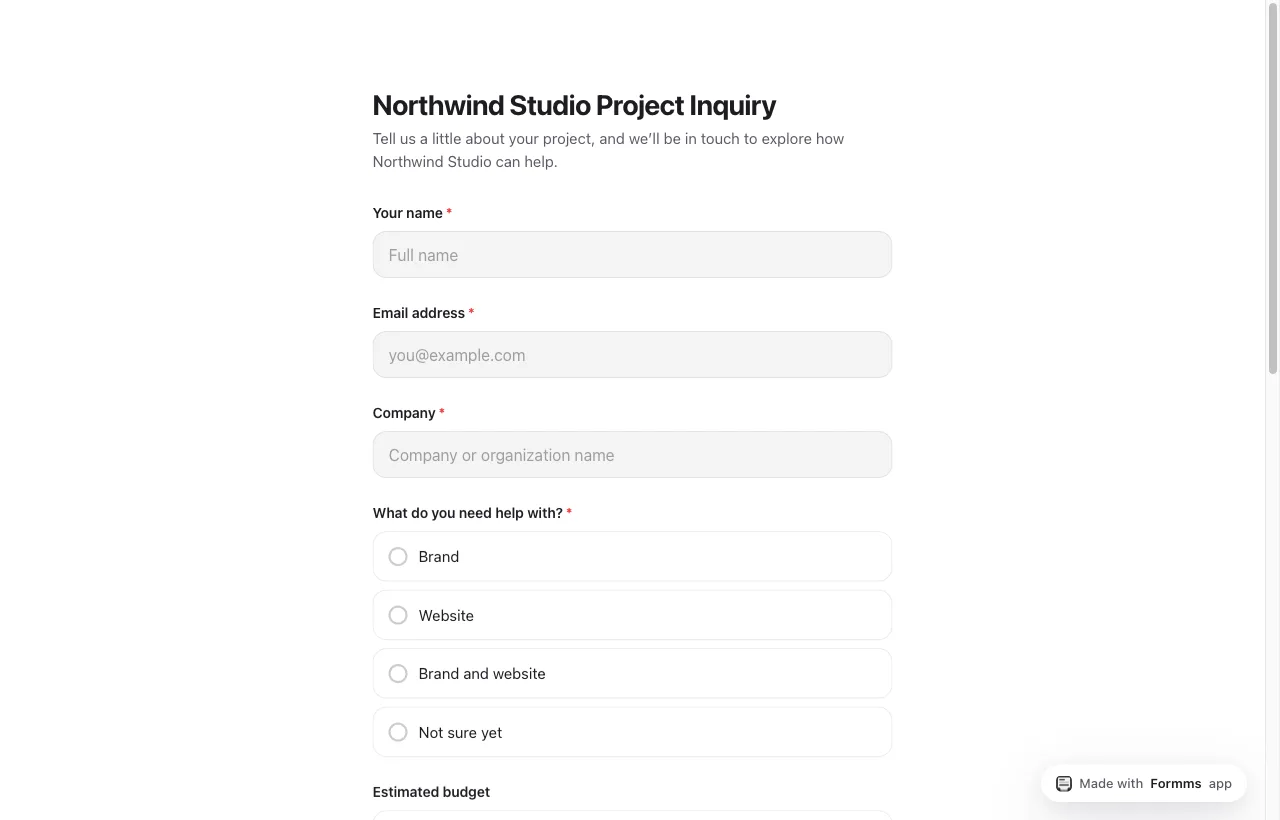
Client inquiry: Northwind Studio
Name, email, company, project type, budget, timeline, project description.
Live form: https://form.ms/9qst2i
Prompt to reuse
Create a project inquiry form for Northwind Studio, a small brand and web studio. Potential clients will fill it in. Collect name, email, company, project type (brand, website, both, not sure), budget range, timeline, and a short description of what they need. Calm and professional.
Quick reference
| Form | Use | Live link |
|---|---|---|
| Maple Street Block Party RSVP | Event | https://form.ms/be4we7 |
| Harbor & Rye Cafe Feedback | Shop survey | https://form.ms/edyb7n |
| Junior Product Designer Application | Hiring | https://form.ms/429e3t |
| Join the Lumen Lamp Waitlist | Product | https://form.ms/46bcyy |
| Northwind Studio Project Inquiry | Leads | https://form.ms/9qst2i |
| Goal | What to do |
|---|---|
| Share fast | Copy the short form.ms/xxxxx link, or download the QR code |
| Put it on your site | Use the Website or WordPress embed snippet from Share |
| Keep collecting | Form settings → Responses → leave Limit responses as No limit |
| Build anywhere | form.ms/dashboard on the web, or the iOS / Android apps |
What to do next
You do not need a bigger form tool for a contact form, a cafe survey, or a waitlist. You need questions that match the job, a link or embed people can open, and replies that do not vanish into a spreadsheet you never open.
The path is short:
- Open form.ms/dashboard (or the mobile app) and describe the form in one paragraph.
- Edit the draft, publish, and share the short link or the website embed.
- Leave the response limit blank, turn on notifications if you want them, and export CSV when you are ready.
If you already have forms in Google Forms, Typeform, or Tally, import them on the New form screen and keep collecting in one place. For a tighter prompt-writing walkthrough, see how to turn a prompt into a shareable form. For a broader tool comparison, see best Google Form alternatives. Teachers choosing among classroom survey apps can start with best survey tools for teachers.